
Excel Growth: Easy Steps for Beginners
Learning to calculate growth percentage in Excel is one of the most valuable skills you can develop as a professional or entrepreneur. Whether you’re tracking business metrics, analyzing sales performance, or monitoring personal financial goals, understanding how to measure growth quantitatively transforms raw data into actionable insights. This fundamental calculation appears across industries—from marketing teams measuring campaign ROI to fitness enthusiasts tracking progress, and it’s surprisingly straightforward once you understand the core formula.
The beauty of mastering growth percentage calculations in Excel lies in its immediate applicability. Rather than relying on gut feelings or vague impressions, you gain concrete data that reveals trends, identifies opportunities, and demonstrates progress. When you can articulate growth with precision, you unlock a psychological advantage: clarity breeds confidence, and confidence drives better decision-making. This guide walks you through everything you need to know, from basic concepts to advanced applications that will elevate your analytical capabilities.
Understanding Growth Percentage Fundamentals
Before diving into Excel mechanics, it’s essential to grasp what growth percentage actually represents. Growth percentage measures the rate of change between two values—typically an initial value and a final value—expressed as a percentage. This metric answers the fundamental question: “By what percentage did this quantity increase or decrease?”
Think about this in personal development terms. When you work on personal growth, you’re measuring progress against where you started. Growth percentage operates on the same principle. It normalizes change, allowing you to compare growth across different scales. A company growing from $100,000 to $150,000 in revenue (50% growth) has grown at the same rate as a company growing from $1,000,000 to $1,500,000 in revenue—both achieved 50% growth, though the absolute dollar increase differs dramatically.
According to research from the American Psychological Association, tracking measurable progress significantly impacts motivation and sustained effort. When you can quantify your advancement using tools like Excel, you create psychological anchors that reinforce positive behavior patterns. This is why growth mindset quotes often emphasize measurement and data—because seeing progress, even small percentages, triggers dopamine release and reinforces continued effort.
Growth percentage calculations fall into two categories: positive growth (increases) and negative growth (decreases, sometimes called decline percentage). Both use identical formulas; the sign of the result indicates direction. Understanding this distinction helps you interpret results correctly and avoid misunderstanding whether your metrics are moving favorably or unfavorably.
The Basic Growth Percentage Formula
The fundamental growth percentage formula is elegantly simple:
Growth Percentage = ((New Value – Old Value) / Old Value) × 100
Let’s break this down into digestible components:
- New Value: The final or current measurement you’re evaluating
- Old Value: The starting or initial measurement (your baseline)
- The Difference: Subtracting old from new gives you absolute change
- Normalization: Dividing by the old value scales this change relative to the original amount
- Percentage Conversion: Multiplying by 100 transforms the decimal into a percentage
Consider a practical example. Suppose you had 200 social media followers last month and 250 this month. Using the formula: ((250 – 200) / 200) × 100 = (50 / 200) × 100 = 0.25 × 100 = 25% growth. You’ve increased your audience by one-quarter, a significant metric for content creators.
This formula works because it creates a ratio—change relative to the starting point. This relativity is crucial. A 50-unit increase means something different depending on whether you started with 100 units (50% growth) or 1,000 units (5% growth). The formula automatically accounts for this context.
Step-by-Step Excel Implementation
Now let’s translate this formula into Excel action. Excel’s spreadsheet environment is perfect for growth calculations because it handles the math automatically and allows you to apply formulas across hundreds or thousands of data points simultaneously.
Basic Setup:
- Open Excel and create three columns: “Metric,” “Previous Period,” and “Current Period”
- In column A, list what you’re measuring (revenue, website traffic, customer count, etc.)
- In column B, enter your starting values
- In column C, enter your current values
- Create a fourth column labeled “Growth %”
Creating the Formula:
- Click on the first cell in your “Growth %” column (let’s say D2)
- Type the formula: =((C2-B2)/B2)*100
- Press Enter—Excel instantly calculates the result
- To apply this formula to all rows, click D2 again, then drag the small square at the bottom-right corner down to fill all relevant cells
- Excel automatically adjusts cell references (C3-B3, C4-B4, etc.) as it copies down
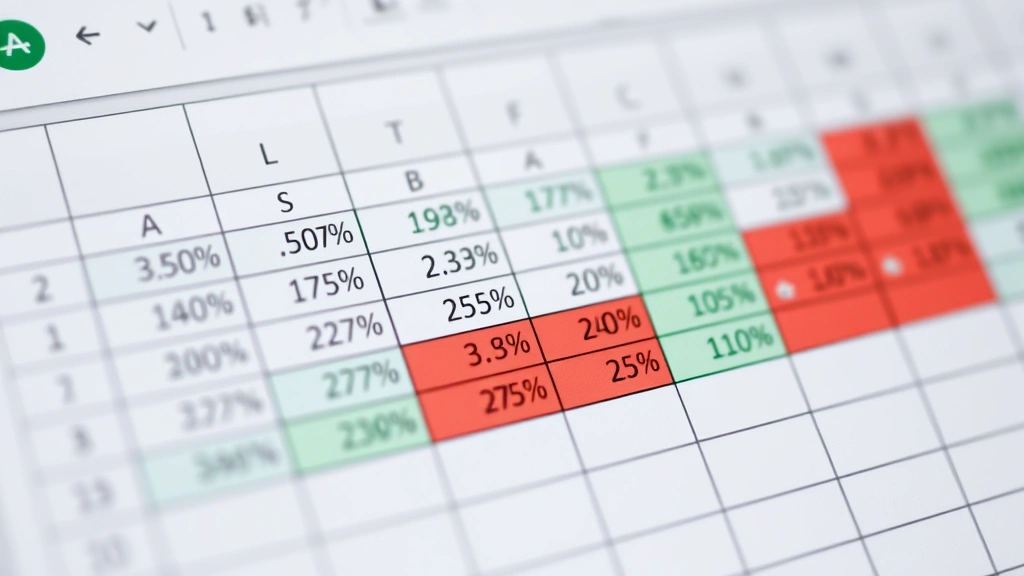
This automated approach eliminates manual calculation errors and saves tremendous time. If you have 500 data points, you’ve just completed 500 calculations in seconds rather than hours. Beyond efficiency, this consistency ensures every calculation uses identical methodology—eliminating human error and bias.
Formatting for Clarity:
Raw percentages can be hard to read. Format your results for maximum clarity:
- Select your growth percentage column
- Right-click and choose “Format Cells”
- Select “Number” and set decimal places to 1 or 2
- Add the % symbol for immediate visual recognition
- Consider using conditional formatting to highlight high growth (green) and declining metrics (red)
This visual presentation transforms numbers into information your brain processes instantly. Research in data visualization shows that color-coded metrics improve comprehension speed and decision-making accuracy by up to 40%.
The psychological impact shouldn’t be underestimated. When you see your growth percentage clearly displayed with green highlighting, you experience a small victory. This positive reinforcement, according to behavioral psychology principles, strengthens the neural pathways associated with tracking and monitoring progress—essential components of sustained personal and professional growth.
Real-World Applications and Examples
Business Revenue Tracking:
Imagine you’re a small business owner. Q1 revenue was $50,000, and Q2 revenue reached $67,500. Using Excel: ((67,500 – 50,000) / 50,000) × 100 = 35% growth. This single number communicates success powerfully to stakeholders, investors, and your team. It’s concrete, measurable, and motivating.
Personal Fitness Progress:
You weighed 200 pounds on January 1st and 185 pounds on March 1st. Growth percentage: ((185 – 200) / 200) × 100 = -7.5%. The negative percentage indicates weight loss, but the magnitude shows meaningful progress. Over two months, you’ve achieved a 7.5% reduction—substantial enough to be noticeable and health-impacting.
Website Analytics:
Last month your website received 10,000 visitors; this month, 14,200 visitors. Growth: ((14,200 – 10,000) / 10,000) × 100 = 42% increase. This metric helps you understand content strategy effectiveness and informs decisions about where to invest marketing resources.
Investment Returns:
You invested $5,000 in a stock portfolio. After one year, it’s worth $6,250. Your investment growth: ((6,250 – 5,000) / 5,000) × 100 = 25% return. This calculation is fundamental to evaluating whether your investment strategy is outperforming market benchmarks and inflation.

These examples illustrate why mastering growth calculations matters. Whether you’re managing productivity tools for professionals or personal metrics, the ability to quantify progress creates accountability and clarity. When you can point to specific percentage improvements, you overcome the psychological bias toward minimizing your own achievements—a common obstacle to maintaining motivation.
Advanced Growth Calculations
Compound Annual Growth Rate (CAGR):
For measurements across multiple years, simple growth percentage doesn’t capture the full picture. CAGR shows average annual growth when values fluctuate. The formula is:
CAGR = (Ending Value / Beginning Value) ^ (1 / Number of Years) – 1
In Excel: =((C2/B2)^(1/A2))-1 where A2 contains the number of years. Multiply by 100 for percentage format. CAGR smooths volatility and provides a clearer trend picture for long-term analysis.
Year-over-Year Growth:
This compares specific periods across different years, controlling for seasonal variations. If January 2023 had 5,000 transactions and January 2024 had 6,500, your year-over-year growth is: ((6,500 – 5,000) / 5,000) × 100 = 30%. This comparison isolates seasonal effects and reveals true business momentum.
Month-over-Month Growth:
Track consecutive months to identify trends and acceleration patterns. Create a formula that calculates growth from each month to the next. This reveals whether growth is accelerating, plateauing, or declining—crucial information for strategic planning.
Creating Growth Dashboards:
Excel’s charting features transform growth data into visual stories. Create line graphs showing growth trends over time, bar charts comparing growth across different metrics, or pie charts showing contribution to overall growth. These visualizations make patterns obvious and communicate insights to non-technical audiences.
Advanced Excel users leverage pivot tables to analyze growth across multiple dimensions simultaneously—by product category, geographic region, customer segment, or any other meaningful categorization. This multidimensional analysis reveals where growth concentrates and identifies underperforming areas requiring attention.
Common Mistakes and How to Avoid Them
Division by Zero Errors:
If your starting value (old value) is zero, you’ll encounter an error. Mathematically, you can’t calculate percentage growth from zero. Instead, use an IF statement: =IF(B2=0,”N/A”,((C2-B2)/B2)*100). This returns “N/A” for impossible calculations rather than showing an error, maintaining spreadsheet clarity.
Confusing Growth Direction:
Negative percentages indicate decline, not failure. A -15% growth percentage simply means the metric decreased by 15%. Some people misinterpret this as an error in their calculation. It’s not—it’s accurate data showing unfavorable movement. Understanding this distinction prevents panic and enables rational response.
Forgetting Decimal Conversion:
The most common beginner mistake is forgetting to multiply by 100. The formula ((C2-B2)/B2) produces a decimal (0.25 for 25% growth). Without multiplying by 100, you’ll see 0.25 instead of 25, creating confusion. Always include the ×100 step.
Mixing Time Periods:
Ensure your “old value” and “new value” represent consistent time periods. Comparing January revenue to March revenue when your company operates on a quarterly basis creates misleading results. Always align your time periods with your business cycle or measurement framework.
Ignoring Context:
A 5% growth rate means something different for a startup versus an established corporation. Context matters enormously. A startup achieving 5% monthly growth might be underperforming, while a mature company achieving 5% annual growth might be outperforming. Always evaluate growth percentages against industry benchmarks, historical performance, and strategic goals.
When you’re working to overcome procrastination and maintain consistent progress tracking, these Excel skills become invaluable. The discipline of regular measurement builds accountability and creates a feedback loop that sustains motivation.
FAQ
What if my old value is negative?
The formula still works mathematically, but interpretation becomes complex. A value growing from -100 to 50 technically shows 150% growth, but this can be misleading. When dealing with negative values, consider whether simple percentage growth is the right metric, or whether absolute change might communicate more clearly.
How do I calculate percentage decrease?
Use the identical formula. If your value decreases from 100 to 75, the result is ((75-100)/100)×100 = -25%. The negative sign indicates decrease. Some prefer to express this as “25% decrease” rather than “-25% growth,” which can be clearer for non-technical audiences.
Can I use this formula for negative growth rates?
Absolutely. The formula handles negative growth seamlessly. If your metric declines, the result will be negative, clearly indicating unfavorable movement. This is a feature, not a limitation—it provides complete information about direction and magnitude.
What’s the difference between growth percentage and growth rate?
These terms are often used interchangeably, but technically growth rate can refer to the decimal form (0.25) while growth percentage refers to the percentage form (25%). In practice, most professionals use “growth percentage” or “growth rate” to mean the same thing—the percentage change between two values.
How frequently should I calculate growth percentages?
Frequency depends on your business cycle and goals. Daily tracking works for high-velocity metrics like website traffic or social media engagement. Weekly or monthly tracking suits most business metrics. Quarterly or annual tracking applies to larger strategic measures. Choose frequency based on what drives decision-making in your context.
Should I use growth percentage or absolute change?
Both provide value. Growth percentage shows relative change and enables comparison across different scales. Absolute change shows real-world magnitude. For comprehensive analysis, track both. A company growing from $100,000 to $120,000 (20% growth, $20,000 absolute increase) tells a different story than growing from $1,000,000 to $1,100,000 (10% growth, $100,000 absolute increase). Both metrics matter.